
ImgShifter: A Privacy-First Image Toolkit That Runs in Your Browser
How ImgShifter converts, compresses, crops, and resizes images entirely in the browser - and how you can verify that nothing ever leaves your device.
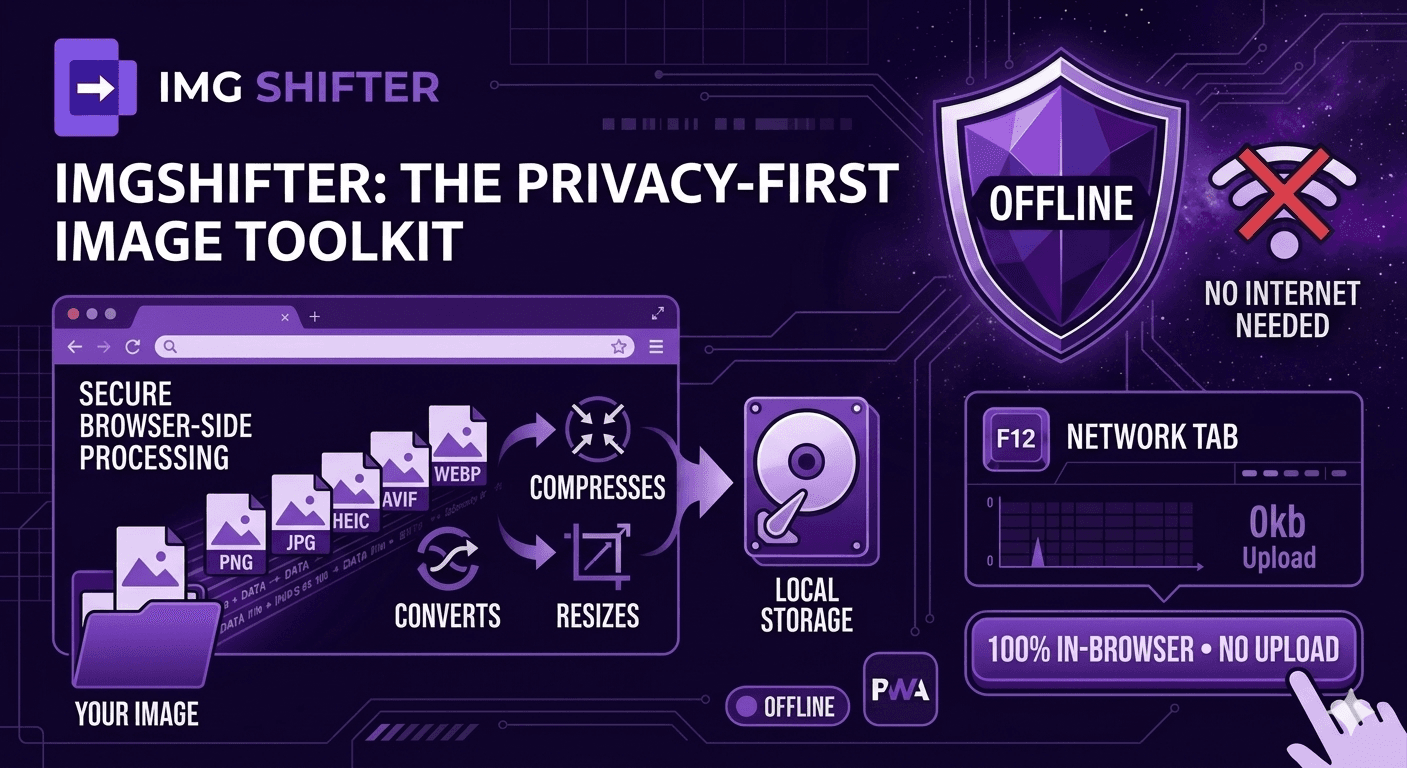
Most online image converters look the same on the surface: drop a file, wait, download. What they don't show you is the round trip - your photo travels to a server, sits in a temporary directory, runs through a queue, and comes back. You have to trust that the server deletes it. You have to trust the network in between. And if your internet drops, the tool stops working.
ImgShifter was built around a different default. Every common conversion, compression, crop, and resize runs entirely inside your browser. Your image is opened by the page itself, processed by code running on your CPU, and saved back to your downloads folder. There is no upload step, because there is no server in the loop.
This post walks through what ImgShifter does, how it does it without sending your files anywhere, and - the part that matters most - how you can verify that for yourself in under a minute.
Why browser-side processing matters
When you upload an image to a typical converter site, you are handing over a copy of it. Even with good intentions on the server side, the file is now stored - however briefly - on infrastructure you don't control. Logs, caches, CDN edges, and shared environments all introduce surfaces that can leak data, get breached, or get subpoenaed. For a holiday photo this is annoying. For a scan of an ID, a screenshot of a private chat, a medical image, or anything covered by NDA, it is a real risk.
Browser-side processing removes that surface entirely. The file is read by the browser using the standard File API, decoded into pixels in memory, re-encoded into the target format, and offered back to you as a download. The network is never touched. From the server's perspective, it served you a static page and never heard from you again.
How to verify ImgShifter is not uploading your files
Privacy claims are easy to make. Verifying them takes about thirty seconds with tools that are already built into your browser. Here are two independent ways to confirm that ImgShifter does not upload your image.
Method 1: Watch the Network tab
- Open ImgShifter and load any browser-side tool, for example /png-to-jpg or /compress-image.
- Open the browser's developer tools (F12 on Windows and Linux, Cmd + Option + I on Mac).
- Switch to the Network tab and clear the existing entries.
- Drop in an image and run the conversion.
- Watch the request list. You will see no POST upload, no large outbound payload, and no request carrying your image bytes - only the static assets the page already needed.
Sort the network entries by size, descending. If a converter were uploading your file, the file itself would be one of the largest outbound requests. On a browser-side ImgShifter conversion, the largest outbound payload is zero - because there isn't one.
Method 2: Turn the internet off
- Visit any browser-side ImgShifter tool once while online so the page and its WebAssembly modules cache locally.
- Disconnect from Wi-Fi or toggle airplane mode, or use the Network tab's Offline throttling option.
- Reload the page and run a conversion.
- It still works. Conversions, compression, crop, and resize all complete without a connection.
A site that uploads your file cannot do this. The conversion would fail the moment the network dropped. ImgShifter completes the entire workflow with the radio off, which is only possible because the processing happens on your device.
What ImgShifter does, feature by feature
Format conversion in the browser
PNG, JPG, WEBP, GIF, and AVIF conversions in every direction run entirely through the Canvas API and modern browser decoders. Drop a PNG, pick JPG, download. The decoding and encoding happen in a single function call against the rendering engine that's already running your tab. No server. No queue.
HEIC conversion - still in the browser
HEIC is Apple's default photo format and historically the format that forced people onto server-side converters, because browsers don't decode it natively. ImgShifter ships a small WebAssembly HEIC decoder that runs in the page. It downloads once, the browser caches it, and from then on every HEIC conversion happens locally - including offline.
AVIF encoding via WebAssembly
AVIF produces dramatically smaller files than JPG at the same quality, but encoding it has traditionally required a server-side toolchain. ImgShifter uses a WebAssembly AVIF encoder so JPG-to-AVIF, PNG-to-AVIF, and WEBP-to-AVIF all run locally. The encoder is around 300KB, downloaded once, and cached for offline use.
Compression with a real preview
The compression tool uses a quality slider with an immediate before-and-after view of file size and visible quality. Everything runs through browser-image-compression in the page itself. There is no upload, no progress bar pretending to be doing remote work - just the encoder reacting to your slider in real time.
Crop and resize
Crop offers aspect-ratio presets, zoom, and a live preview. Resize supports width-and-height with an aspect-ratio lock to prevent accidental stretching. Both re-encode the visible region locally and hand you a download. No file leaves the device.
Batch conversion
Drop in multiple files at once and ImgShifter processes them in sequence, then bundles the results into a single ZIP using JSZip - again, generated in the browser. Even the archive never touches a server.
Installable, offline-ready PWA
ImgShifter is a Progressive Web App. After a single visit, the app shell and its WebAssembly modules are cached locally. You can install it to your home screen or dock on Windows, macOS, Android, and iOS, and you can use it on an airplane. The offline badge in the navbar shows you exactly when you are running fully local.
Server-side fallback - only when absolutely required
A small set of formats still require server-side handling today: TIFF and RAW (CR2, NEF, ARW, DNG). These rely on native decoders that don't yet exist as practical WebAssembly builds. SVG used to be on this list, but both directions now run in the browser - rasterization via a Canvas pass and raster-to-SVG vectorization via ImageTracer and VTracer. ImgShifter marks the remaining server-side tools clearly in the UI - including a WifiOff indicator in the navigation when you're offline - so it's obvious when network is involved. For every other tool, the network is not involved.
How ImgShifter compares to typical upload-based converters
- Privacy: Browser-side processing means your file never leaves your device. Upload-based tools by definition store a copy on their infrastructure.
- Speed: There is no upload time, no queue, and no download time for the result. Conversions feel instant because they are local function calls.
- Offline: ImgShifter works without an internet connection for every browser-side tool. Upload-based tools fail the moment your connection drops.
- Cost and limits: With no server doing the work, there is no per-file cost to pass on. ImgShifter is free with no signup, no file quotas, and no daily caps on the browser-side tools.
- Verifiability: You can prove ImgShifter isn't uploading by watching the Network tab or going offline. With upload-based tools, you have to take a privacy policy on faith.
The trade-off, honestly
Running everything in the browser has one real cost: very large files use your device's RAM and CPU instead of a server's. On a low-end phone, an 80-megapixel TIFF will be slower than it would be on a beefy cloud instance. For the file sizes most people work with - photos from phones, screenshots, web assets, social uploads - the local path is significantly faster than any round trip to a server, and the trade lands firmly in your favor.
Try it and check the Network tab
The fastest way to trust ImgShifter is not to read about it - it's to open the dev tools and watch what happens when you drop a file in. Pick any of the browser-side tools, open the Network panel, and convert something. The absence of an upload is the whole point.
Then, if you want the strongest demonstration, turn off your Wi-Fi and do it again. ImgShifter will keep working. That is what privacy-first means in practice - not a promise, but a property of how the tool is built.
Try ImgShifter
Drop a file into any browser-side tool and watch the Network tab. The absence of an upload is the proof.