
Why Are My iPhone Photos Saving as HEIC? (And What to Do About It)
iPhones have been shooting in HEIC since 2017. Here is the actual reason - the storage math, the compatibility trade-off, and three ways to get JPEGs back when you need them.
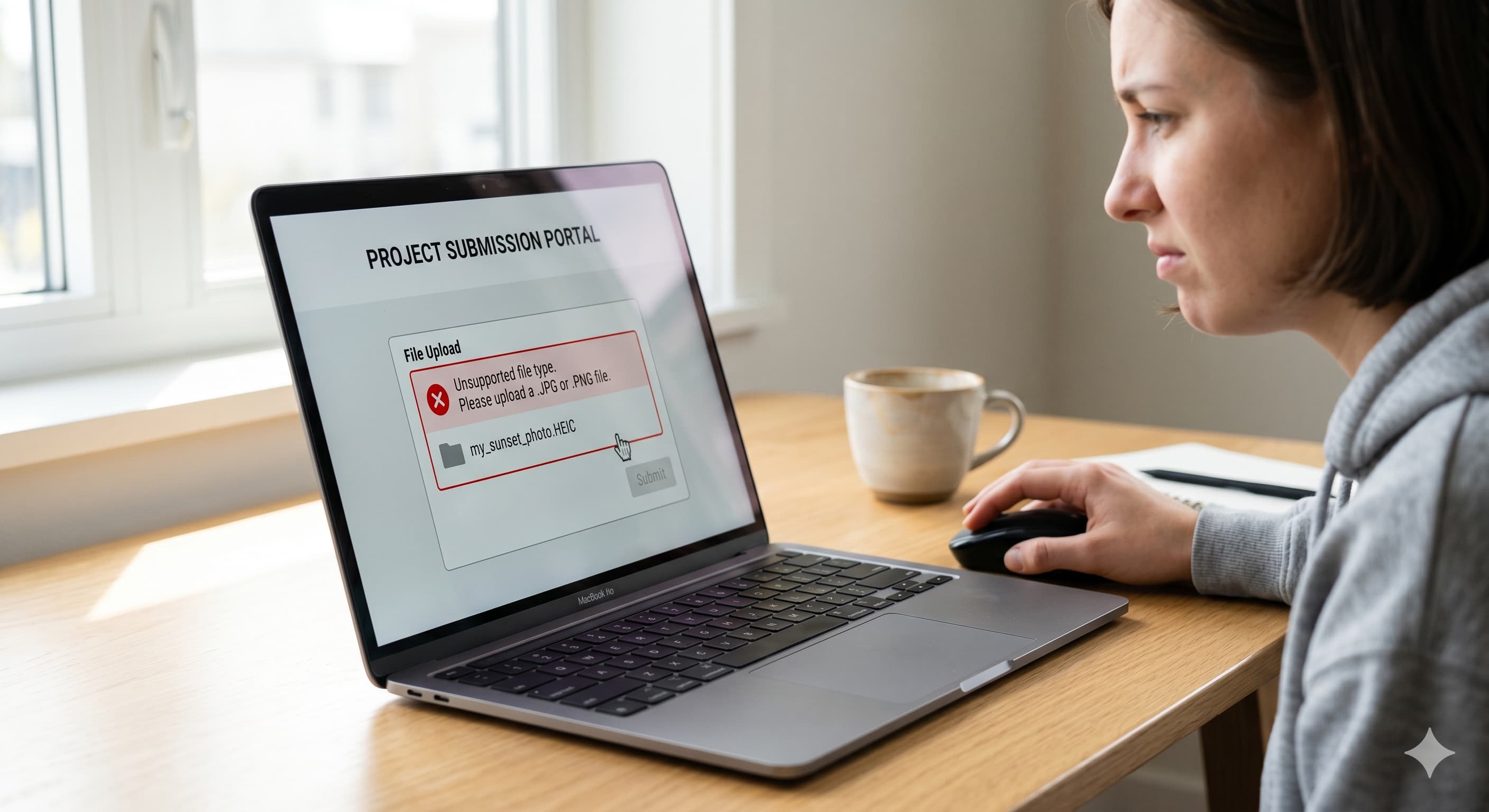
A small confession before we get into the technical stuff. A while back I was in a hospital bed, trying to send my employer the medical certificate they needed before they would approve my sick leave. I took a photo of the paper certificate with my iPhone, opened the HR portal on the same phone, tapped upload - and the portal threw back a red error: "file type not supported." It only accepted .jpg or .png. My iPhone had quietly saved the photo as .heic, and from a hospital bed I had no laptop, no easy converter, no obvious way out. I ended up converting the image using some random website that definitely uploaded my medical certificate to a server.
That tiny moment of "I am sick, I just need to send one file, and the universe is making me solve a codec problem" is what eventually became ImgShifter. The whole site exists because converting a HEIC photo to a JPEG should not require uploading a medical document to a stranger's server, installing software, or owning a desktop computer. If this article ends with a button pointing at our HEIC tools - that hospital-bed afternoon is the reason.
If you have hit your own version of this - a CMS that rejects .heic, an insurance portal that demands JPG, a friend on Android who sees nothing in the WhatsApp message - you are not alone. Apple quietly switched the default photo format on every iPhone in 2017 with iOS 11, and most people only discover the change the first time the new format trips over something. Here is what HEIC actually is, why Apple made the switch, and three ways to get standard JPEGs back depending on how much you want to give up.
What HEIC actually is
HEIC stands for High-Efficiency Image Container. It is Apple's specific variant of HEIF (High-Efficiency Image File Format), a standard developed by the Moving Picture Experts Group - the same body behind MP4 video. The container holds image data compressed with HEVC (H.265), the video codec Apple already uses for 4K recording. Reusing the codec means the same hardware decoder on the iPhone's chip handles both, which is why HEIC encoding feels instant on a modern iPhone.
HEIC is not just "a smaller JPEG." It is a richer container. One HEIC file can hold image bursts, depth maps from Portrait Mode, edit history, transparency, 16 bits of color per channel (vs JPEG's 8), and HDR metadata. The .HEIC extension hides all of that, but it is sitting in the file whether your computer can read it or not.
Why Apple made the switch
The simplest answer is storage math. JPEG is 34 years old (the original standard was finalised in 1992). It works, but its compression is wasteful by modern standards: it does not exploit the spatial and frequency-domain tricks that newer codecs use. HEVC, the codec inside HEIC, was designed in 2013 specifically to halve the file size of H.264 video at the same quality. Apple applied the same idea to still images.
In practice, a typical iPhone photo in HEIC is 40 to 60 percent smaller than the equivalent JPEG at the same visual quality. On a 256 GB iPhone shooting 12 MP photos at the rate most people shoot (a few dozen per week, plus occasional bursts and Live Photos), that delta is the difference between local storage filling up in eighteen months versus four years. Apple has not publicly explained its internal motives, but the user-side math alone is enough to explain the switch, and the format's other capabilities (depth maps, HDR, edit history) made HEVC's still-image variant a natural fit even outside the storage argument.
The compatibility catch
Adoption outside the Apple ecosystem has been slow. As of 2026:
- Windows 10 and 11 do not decode HEIC out of the box. Users have to install the HEIF Image Extensions from the Microsoft Store, and full Live Photo support also requires the HEVC Video Extensions — Microsoft's pricing and bundling for the HEVC component have shifted over the years (sometimes free via the device manufacturer, sometimes a paid Store install), so check the Store listing for current availability.
- Android decodes HEIC natively on Android 9+ (2018) but many third-party photo viewers and older messaging apps still bail.
- Web platforms (CMS uploaders, form fields, ATS systems, government portals) often reject .heic extensions outright because their backend image libraries do not include an HEIC decoder.
- Older Mac apps that have not been updated since 2017 can sometimes display a placeholder icon where a thumbnail should be.
AirDrop, Messages, and iCloud Photos sidestep the problem because Apple devices handle HEIC natively. The trouble starts the moment a file leaves the ecosystem - email attachments, USB transfers, third-party cloud uploads, and any web form that does not include image/heic in its accepted MIME types.
Option 1: Make your iPhone shoot in JPEG by default
If you regularly send photos outside the Apple ecosystem and the storage savings are not critical, the cleanest fix is to flip the capture format itself. New photos will be JPEGs from the moment you press the shutter.
- Open the Settings app on your iPhone.
- Scroll down and tap Camera.
- Tap Formats at the top of the menu.
- Switch from "High Efficiency" to "Most Compatible."
Option 2: Keep HEIC, but auto-convert on transfer
If you would rather keep the storage benefits of HEIC on the phone but skip the compatibility hassle the moment files leave it, iOS has a built-in conversion that runs only when you physically transfer photos to a computer.
- Open the Settings app.
- Scroll down and tap Photos.
- Scroll to the bottom to the "Transfer to Mac or PC" section.
- Make sure "Automatic" is selected (not "Keep Originals").
With Automatic enabled, the iPhone converts HEIC to JPEG on the fly during USB transfers to a Mac or PC. The originals stay in HEIC on the phone, the copy you receive on your computer is JPEG. This is the option Apple itself recommends for users who do not want to think about the format ever again.
Option 3: Convert on demand without uploading
Neither of the iOS settings helps when you have already received a batch of HEIC files from someone else, or when you find yourself standing at a kiosk that needs a JPEG five minutes ago. For that case, you need a converter.
Most online HEIC converters work by uploading your photo to a server, decoding it there, and sending you back a JPEG. That round trip is slow, requires giving an unknown server a copy of your photo, and fails the moment your network drops. ImgShifter's HEIC to JPG and HEIC to PNG tools work differently: the HEIC decoder runs inside your browser as a WebAssembly module. Drop a .heic file in, the browser decodes it locally, and you download a JPEG or PNG. The file never leaves your device. You can verify by opening DevTools and watching the Network tab while you convert: the only outbound traffic is the page itself loading.
It is the same workflow whether you convert one photo or thirty: drag a batch in, ImgShifter processes each one in sequence and offers a ZIP download. The decoder is cached after the first conversion, so subsequent sessions run instantly and work offline (try it — disconnect from the network after the page loads and the conversion still works).
Which option should you pick?
There is no universally correct answer. It depends on how often you send photos outside the Apple ecosystem and how full your phone is.
| Your situation | Recommended fix |
|---|---|
| You almost always share via AirDrop, iCloud, or Messages, rarely outside Apple | Leave HEIC on. It is the better format and you will not feel the friction. |
| You regularly upload to web platforms that reject .heic, or send photos to Android friends | Switch capture to Most Compatible (Option 1). Trade storage for predictability. |
| You transfer photos to a PC or Mac via USB occasionally and otherwise want HEIC | Enable Automatic conversion on transfer (Option 2). You get both. |
| You already have a folder of HEIC files you need to share now | Convert on demand with the in-browser HEIC tools (Option 3). No setting changes required. |
The bigger picture
HEIC is part of a broader migration the web has been working through for years: away from JPEG and PNG, toward newer codecs that pack more visual quality into fewer bytes. AVIF (based on the AV1 video codec, the open successor to HEVC) is doing for the web what HEIC did for Apple's camera roll. AVIF has the advantage of being royalty-free, which is why every modern browser now ships with native AVIF decoding.
The frustrating part of the transition is that we are between worlds. New formats are objectively better but legacy systems still expect JPEG. Until that gap closes, knowing how to convert between formats - quickly, privately, without uploading anything - is a small superpower.
Got HEIC files now? Convert them without uploading
Because of the hospital story above, ImgShifter's HEIC tools run entirely in your browser. The HEIC decoder is a WebAssembly module that loads once and runs on your device: drop a .heic file in (or a batch), get JPEG or PNG out, no upload, no signup, works offline. Medical certificates, IDs, anything sensitive — the file never reaches a server.
Related articles
Image Too Large to Upload? How to Fix It on Any Device (2026)
Phone photos run 3 to 6MB and plenty of upload forms stop at 2MB. How to shrink, convert or resize an image so it uploads, on any phone or computer.
12 min read
WebP vs. JPEG vs. PNG vs. AVIF: Which Image Format Should You Actually Use?
JPEG, PNG, WebP, and AVIF compared in plain English — what each format does well, what it breaks on, where browser support stands in 2026, and which one to actually ship for photos, graphics, and the web.
9 min read
The 2026 State of Web Graphics: PNG Is Out, AVIF and SVG Are In
Legacy PNG and JPEG are quietly being replaced by AVIF, WebP, and inline SVG. A data-driven look at why the migration is happening, how the formats actually differ at render time, and what to ship in 2026.
11 min read